
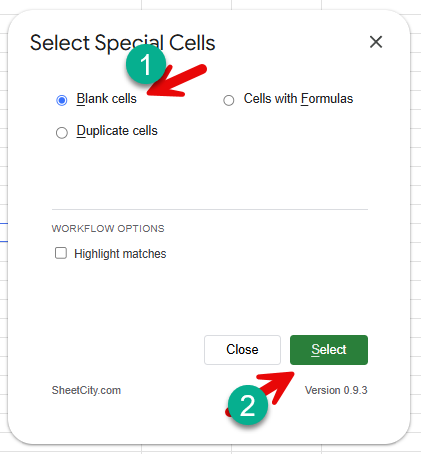
Google Sheets has no “Go To Blanks” button—but you can find and select every empty cell in under 30 seconds using one of five methods.
Whether you’re identifying missing data, filling gaps, or cleaning up your spreadsheet, this guide shows you the fastest approach for your situation. Pick one method and you’ll never waste time hunting for blanks again.
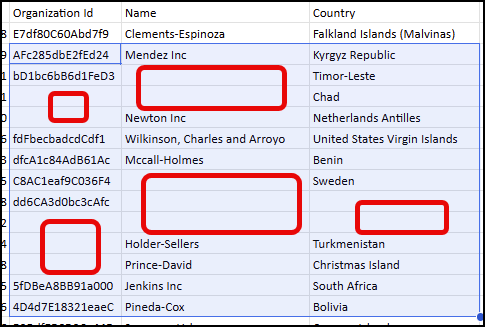
The Quickest Way: Select Special Cells

If you want the fastest possible method without memorizing regex or clicking through menus, Select Special Cells finds and selects every blank cell in your range in one click.
Steps:
- Install Select Special Cells from the Google Workspace Marketplace
- Highlight the range you want to search
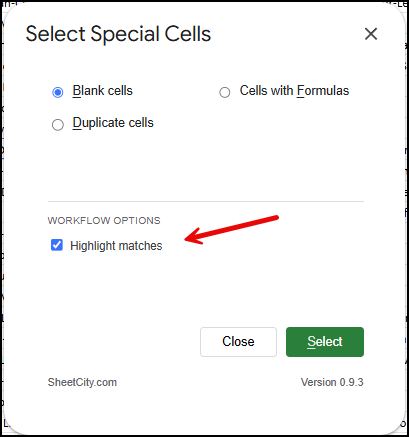
- Click Extensions > Select Special Cells > Start > Blanks cells > click Select
- Every blank cell in your range is selected instantly
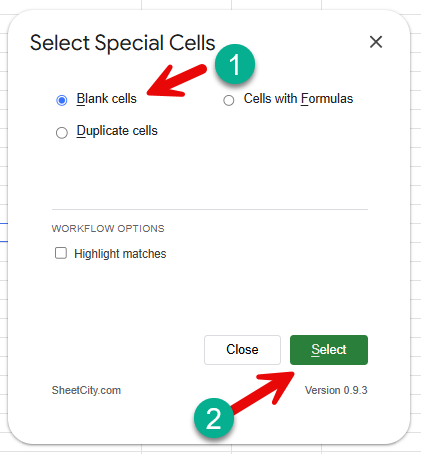
Why it’s the fastest option: No regex syntax, no formatting side effects, no clicking through Find & Replace dialogs. Just select your range and click.
Real-world example: Auditing a dataset with missing values across 10 columns takes 10+ minutes with Find & Replace. With Select Special Cells, it takes 30 seconds. Try it free.
Prefer a free, built-in method? The four approaches below use only Google Sheets’ native tools.
Method 1: Find and Replace with Regular Expressions (Fastest Free Method)
This is the quickest way to select all blank cells across your entire sheet.
Steps:
- Select the range where you want to find empty cells (or leave everything selected for the whole sheet)
- Click Edit > Find and replace
- In the “Find” field, type:
^$ - Check the box for Search using regular expressions
- Click Find to select the blank cell
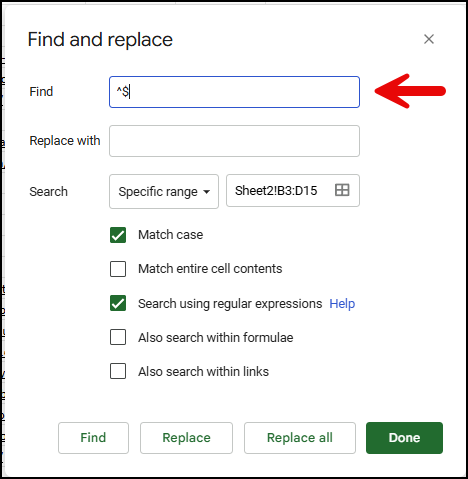
What’s happening: The regular expression ^$ matches cells that contain nothing—the ^ marks the start of a cell, and $ marks the end.
Method 2: Use Filters (Best for Reviewing Data)
Filters let you isolate blank cells in a specific column, which is perfect when you want to review and fill in missing information row by row.
Steps:
- Click the filter icon at the top of your data
- Click the filter dropdown for any column
- Uncheck Select all or click Clear
- Below the search field, check the box next to (Blanks)
- Click OK
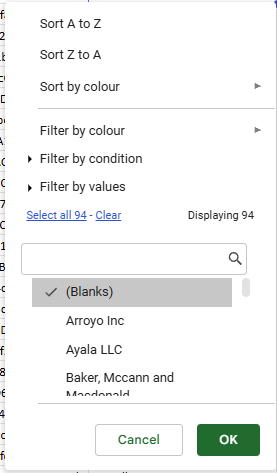
Your sheet will now show only rows where that column is empty.
When to use this: When you need to visually review the data and fill in blanks manually, or when blanks are concentrated in specific columns.
Method 3: Conditional Formatting (Best for Highlighting)
Use conditional formatting to highlight all blank cells with a color, making them visually obvious without hiding other data.
Steps:
- Select the range you want to format
- Click Format > Conditional formatting
- Choose Format rules > Is empty
- Pick a fill color (or any formatting style)
- Click Done
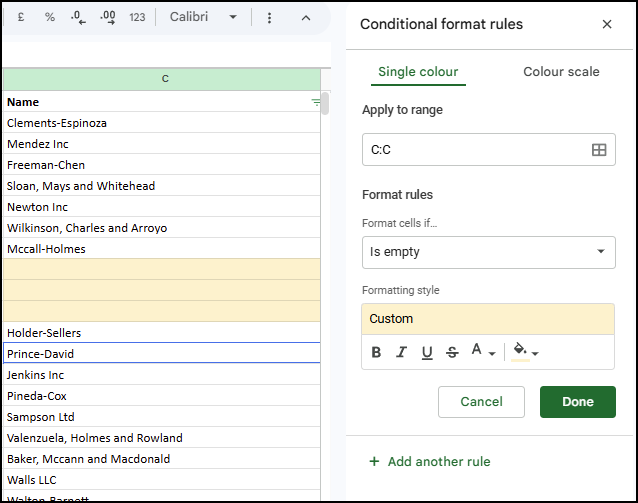
All blank cells in your selection will now be highlighted.
When to use this: When you want to see blank cells alongside the rest of your data, or when you’re auditing data quality.
Alternatively: the quickest method above also helps with highlighting blank cells with color – using the Select Special Cells. Just choose ‘Highlight matches’ from the WORKFLOW OPTIONS panel.
Method 4: Use the ISBLANK Formula (For Formulas and Automation)
If you need to identify blanks as part of a larger formula or workflow, use ISBLANK().
Example:
=IF(ISBLANK(A2), "Missing", A2)This formula checks if cell A2 is blank. If it is, it displays “Missing.” Otherwise, it shows the cell’s value.
Practical example:
=COUNTBLANK(A1:A100)This counts how many blank cells exist in the range A1:A100.
When to use this: When you’re building automated workflows, validation systems, or dashboards that need to detect missing data.
Which Method Should You Use?
| Method | Time | Scope | Best For |
|---|---|---|---|
| Select Special Cells | ~ 30 seconds | Custom range | ✨Fastest option, no regex or menus |
| Find & Replace | ~ 30 seconds | Entire sheet or range | Very small datasets |
| Filters | 30 seconds – 1 minute | Single column | Reviewing and filling data |
| Conditional Formatting | 1–2 minutes | Custom range | Visual identification |
| ISBLANK Formula | 1–3 minutes | Custom formulas | Automation and workflows |
Common Mistakes When Selecting Blank Cells
Mistake 1: Forgetting to enable “Search using regular expressions”
Without this checkbox, Google Sheets will search for the literal characters ^$ instead of interpreting it as a regular expression.
Mistake 2: Selecting only a small range
If you only select columns A–B, the Find & Replace method won’t find blanks in columns C–Z. Always select your full range first (Ctrl+A to select all).
Mistake 3: Confusing “Replace all” with “Replace”
- Replace (single button) acts on one cell at a time. You click repeatedly to move through results.
- Replace all acts on every matching cell at once.
Mistake 4: Not accounting for spaces
A cell with just a space character is not blank—it contains data. If you need to handle this, use Find & Replace to search for ^ +$ (regular expression for one or more spaces).
Read: Google Sheets Regex Not Finding Blank Cells? Here’s Why + Fix
Mistake 5: Forgetting to clear filters when done
After using filters to find blanks, remember to clear the filter (click the filter icon and select “Clear”) to see your full data again.
Tips for Cleaning Blank Cells
Tip 1: Fill blanks with a formula
After selecting blanks with Find & Replace, type a formula like =A1 and press Ctrl+D (or Cmd+D) to fill down from the cell above.
Tip 2: Delete entire blank rows
- Use Find & Replace to select blanks in a key column (like ID)
- Go to Edit > Delete > selected rows
See How to select duplicate cells in Google Sheets for the same one-click approach applied to duplicates.
Tip 3: Replace blanks with a value
- Use Find & Replace (
^$) - In the “Replace” field, type the value you want (e.g., “N/A”)
- Click Replace all
Tip 4: Use FILTER to remove blanks
Try it on an area where an equal number of columns are available as your existing dataset.
=FILTER(A1:D100, (A1:A100<>"") * (B1:B100<>""))This formula removes any row where columns A or B are blank.
Tip 5: Monitor for new blanks
Set up conditional formatting on important columns to highlight blanks as soon as they appear, helping you catch data entry errors early.
FAQ
Can I select blank cells across multiple sheets at once?
No. You need to work on one sheet at a time. Open each sheet and repeat the process.
Where is the “Find all” feature in Google Sheets?
Google Sheets does not have a native “Find All” feature that displays every single search result in a single master list like Microsoft Excel does.
Does the ISBLANK formula work for cells with spaces?
No. ISBLANK() only returns TRUE for completely empty cells. A cell with a space is considered filled. Use TRIM() first if you need to handle spaces: =ISBLANK(TRIM(A2))
Why doesn’t Google Sheets have a “Go To Special” feature like Excel?
Google Sheets’ Find & Replace feature with regular expressions serves the same purpose, though the workflow is slightly different.
Can I select blank cells using a keyboard shortcut?
No direct shortcut exists. If you use the Select Special Cells, it has keyboard shortcuts that you can start using for faster workflows.
What if I want to select cells that are NOT blank?
Use the regular expression: .+ (matches one or more characters). This selects every non-empty cell.
External References
- Google Sheets Help: Find and replace
- Google Sheets Help: Filter data in a range
- Select Special Cells on Google Workspace Marketplace
- SheetCity – Select Special Cells Product Page
Skip the Manual Work
If you’re regularly cleaning up spreadsheets, remembering regex patterns or clicking through filter menus adds up. Select Special Cells finds every blank cell—plus merged cells, formulas, and other special cell types—in one click. Try it free.

[…] How to Select Blank Cells in Google Sheets […]