
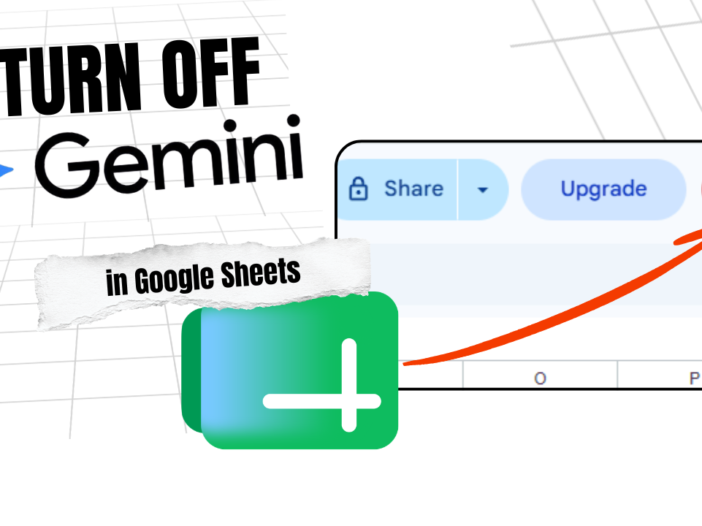
A step-by-step guide to turning off Gemini AI features in Google Sheets, whether you’re on a personal Gmail account or a Google Workspace plan.
The instructions below cover three situations:
- Personal Gmail (with no paid AI subscriptions)
- Personal Gmail with a Google One AI Premium subscription
- Google Workspace accounts (end-users and admins)
Personal Gmail (no paid AI subscription)
Can I remove the Gemini sparkle icon?
No (but there’s a workaround – read on to know how).
The top-right Gemini sparkle icon cannot be completely removed from a free personal Google account toolbar. Since you don’t have an active Google One AI Premium subscription (the Upgrade button sits right next to it), Google displays this icon as a permanent shortcut and promotional entry point.
If you find the icon highly distracting, the only way to completely hide it in your desktop browser is to use an ad-blocker extension (like uBlock Origin or AdBlock) to manually select and hide that element.
Turn off existing smart features
- Open Gmail on your desktop browser
- Click the Settings (gear icon) in the top-right corner and choose See all settings
- Make sure you’re on the General tab, then scroll down to the Google Workspace smart features section
- Click Manage Workspace smart feature settings
- Uncheck both options:
- Smart features in Google Workspace
- Smart features in other Google products
Scroll to the bottom and click Save Changes
Disable AI suggestions in Sheets
- Open a spreadsheet in Google Sheets
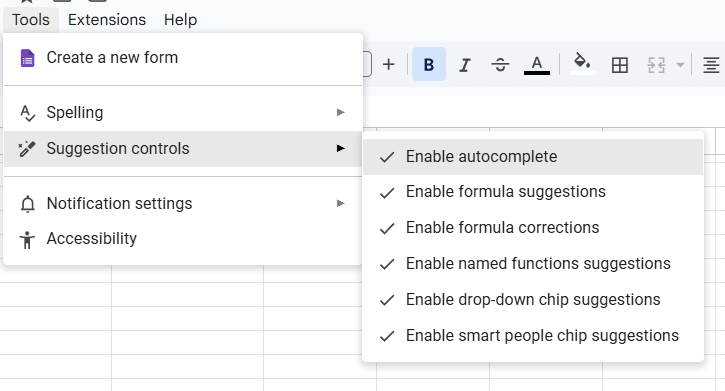
- Click Tools in the top menu bar
- Hover over Suggestion controls
- Uncheck Autocomplete and AI suggestions, and everything that you do not want from the menu items given there.
Personal Gmail (with Google One AI Premium subscription)
If you’re paying for a Google One AI Premium subscription, you cannot toggle off the Gemini side panels through an app-specific setting while keeping the subscription active. You have two options.
Option 1: Deactivate AI across your apps (recommended)
Leave your subscription active (keeping advanced storage or standalone Gemini Advanced web chat) but strip the AI prompts, inline help, and auto-suggestions out of your Google Sheets, Docs, and Gmail. This is similar what we saw earlier:
- Open Gmail on a desktop browser
- Click the Settings (gear icon) in the top-right corner and choose See all settings
- On the General tab, scroll down to the Google Workspace smart features section
- Click Manage Workspace smart feature settings
- Uncheck both options:
- Smart features in Google Workspace
- Smart features in other Google products
Scroll down and click Save Changes
Note: This hides inline generative AI boxes and auto-summaries from Google Sheets, but it also turns off classic tools like Smart Compose and automatic email categorization.
Option 2: Downgrade your paid subscription
If you want to completely remove Gemini premium side panels and stop future billing, drop down to a standard storage tier.
- Go to the Google One Storage Management Portal
- Click the Settings (gear icon)
- Select Change membership plan
- Choose a standard storage tier (100 GB or 200 GB) that does not include the “AI Premium” bundle
- Confirm the downgrade
Your workspace apps will immediately lose access to premium Gemini integrations once the billing cycle shifts.
Google Workspace account
In a paid Google Workspace organization, control over Gemini is centralised. Individual end-users cannot completely disable Gemini if it has been forced onto their account by organisational policy.
If you are not an admin (end-user)
If your company or school has assigned a Gemini license to you, you cannot turn off the panel or completely remove the sparkle icons. But you can minimise its presence:
- Hide the side panel: Click the close (X) or the Gemini sparkle icon in the top-right header to collapse the sidebar
- Turn off suggested writing: In Gmail or Docs, go to Settings > See all settings > General, scroll to Smart Features and Personalization, and uncheck the box
- Request removal: Contact your internal IT helpdesk or Google Workspace administrator. They must explicitly remove the Gemini for Google Workspace add-on license from your specific user account
If you are an admin
If you have Super Admin privileges, you can completely turn off Gemini features across your organisation or restrict them to specific departments.
Method 1 — Turn off Gemini across Workspace apps
This removes the Gemini side panels and inline writing features from Gmail, Docs, Sheets, Drive, and Meet.
- Sign in to the Google Admin Console
- In the left navigation, go to Generative AI > Gemini for Workspace
- Click the Feature access panel
- (Optional) Select a specific Organisational Unit (OU) on the left to restrict changes to certain departments
- Click Edit next to the specific service or application
- Switch the setting to Off and click Save
Method 2 — Turn off the standalone Gemini web app
This blocks users from using their company credentials to log into the main chat interface at gemini.google.com.
- In the Google Admin Console, go to Menu > Generative AI > Gemini app
- Click User access
- Change the access policy to Off for the entire organisation or selected OUs
- Click Save
Final thoughts
Gemini in Google Sheets is here to stay — but that doesn’t mean you have to use it.
Whether you’re on a free Gmail account annoyed by the sparkle icon, a paid subscriber who changed their mind, or a Workspace admin managing an entire organisation, you now have a clear path forward.
Free users: block the icon with an extension and turn off the smart features. Paid users: deactivate through settings or downgrade your plan. Workspace admins: flip the toggles in the Admin Console. End-users: talk to your IT team.
No single solution fits everyone, but one of these will fit you.
If this guide helped, feel free to share it with someone else who’s tired of seeing uninvited AI in their spreadsheets. And if you run into a situation I didn’t cover here, reach out — I’m happy to help.
Leave a Reply