
Google Sheets has no built-in menu option to find formula cells in Google Sheets — but you can select every one of them in under 30 seconds with the right tool.
Auditing a complex spreadsheet means knowing which cells contain formulas and which contain static values. When a sheet has hundreds or thousands of cells, checking each one manually is impractical, and one wrong overwrite — replacing a formula with a hardcoded number — can silently break your calculations.
The Quickest Way to Find Formula Cells in Google Sheets
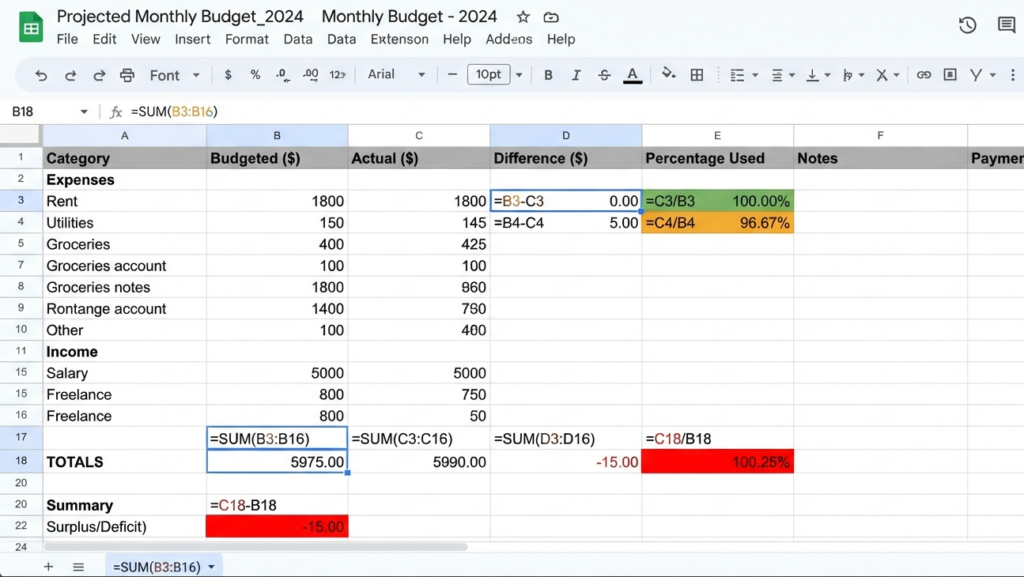
Select Special Cells finds and selects every cell that contains a formula in your selected range in one click. With Highlight matches enabled, formula cells stay visually marked so you can audit your sheet at a glance.
What you’ll need:
- A Google account with access to Google Sheets
- A spreadsheet with formulas you want to identify
- The Select Special Cells add-on, installed from the Google Workspace Marketplace
Step 1 — Install the add-on
- Open any Google Sheets spreadsheet
- Click Extensions > Add-ons > Get add-ons
- Search for Select Special Cells
- Click Install and grant the requested permissions
The add-on requires basic spreadsheet access to read and select cells. It does not modify, delete, or transmit your data.

Step 2 — Open the add-on
- Click Extensions in the top menu bar
- Hover over Select Special Cells
- Click Start
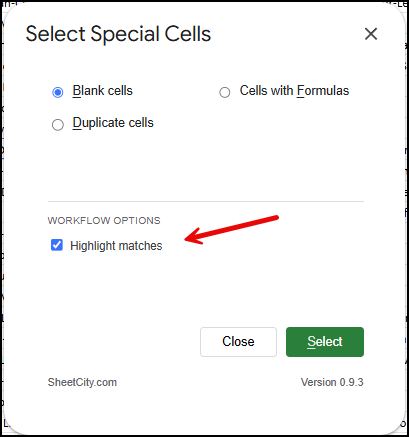
A dialog box appears on the right side of your screen with three options: Blank cells, Cells with Formulas, and Duplicate cells.
Step 3 — Select your range
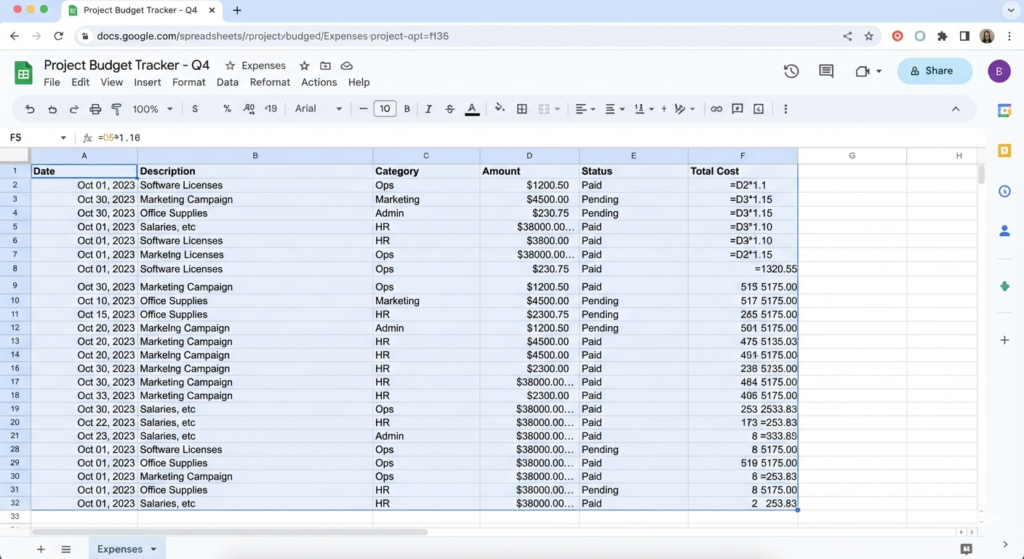
Before clicking anything in the dialog, highlight the cells you want to scan — the add-on only checks what you have selected.
- A specific block — e.g., A1:Z100 to audit a full table
- A single column — e.g., column D to check if every cell is a formula or a static value
- Multiple non-contiguous ranges — hold Ctrl (Windows) or Cmd (Mac) while clicking to select separate areas
To audit an entire sheet, select all cells with Ctrl+A (Windows) or Cmd+A (Mac) first.
Step 4 — Choose “Cells with Formulas”
In the dialog, click the Cells with Formulas radio button, or press the keyboard shortcut F.
Step 5 — Enable “Highlight matches”
Before clicking Select, check the Highlight matches checkbox under Workflow Options. This paints every formula cell with a light yellow background (#fff2cc) after selecting them, applied in the same undo step as the selection — a single Ctrl+Z (or Cmd+Z) reverts both.
Highlighting gives you an instant visual map of where calculations live in your sheet, so you can spot cells that should contain formulas but don’t, or cells that unexpectedly contain hardcoded values.
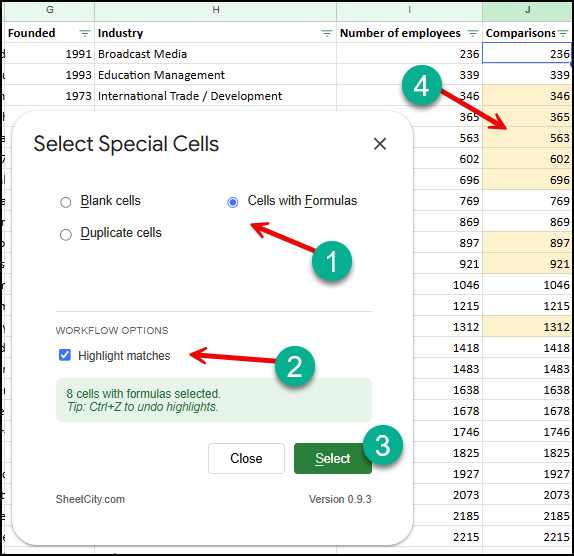
Step 6 — Click Select
Click the green Select button, or press S.
The add-on scans every cell in your range, identifies cells that contain a formula (not just a displayed value), selects them, and — if Highlight matches was checked — paints them light yellow. A status message shows how many formula cells were found.
Real-world example: Auditing a 500-row financial model for accidentally overwritten formulas manually takes 15+ minutes of cell-by-cell checking. With Select Special Cells, it takes 30 seconds.
Prefer to understand how detection works first? Keep reading below.
How Google Sheets Detects Formula Cells
The add-on uses Google Sheets’ built-in getFormulas() method to check each cell, which returns the formula string (e.g., =SUM(A1:A10)) for cells that contain a formula, and an empty string for cells that don’t.
This means:
- Only actual formulas are detected — a cell that displays a number or text calculated by a formula in another cell is not counted
- Array formulas are included — cells that are part of a
={ARRAYFORMULA(...)}range are detected - Detection is exact — there’s no ambiguity between a cell containing
=A1+B1and a cell containing the literal text"=A1+B1"(the latter is not a formula)
What Happens with Merged Cells
If your spreadsheet contains merged cells, the add-on handles them intelligently:
- Only the top-left cell of a merged range is checked for formulas
- Non-top-left cells inside a merge are skipped (they return empty values even when the merge displays data)
- You do not need to unmerge cells before running the add-on
Keyboard Shortcuts
| Action | Shortcut |
|---|---|
| Select blank cells | B |
| Select duplicate cells | D |
| Select cells with formulas | F |
| Run selection | S |
Shortcuts are ignored while the add-on is processing and while your cursor is busy inside the sheets and cells.
Undoing the Highlight
If you enabled Highlight matches, the yellow background is applied as part of the same undo step as the selection. To remove both, press Ctrl+Z (Windows/Linux) or Cmd+Z (Mac). This reverts the highlight and the selection in a single action — there is no separate “clear highlights” button.
Tips for Large Spreadsheets
- Use with conditional formatting — after highlighting formula cells, apply conditional formatting rules to further distinguish formula types (e.g., red for cells containing
#REF!errors).
Common Mistakes When You Find Formula Cells in Google Sheets
Mistake 1: Forgetting to select a range first
The add-on only scans what you’ve selected. Selecting a single cell (rather than a range) will return an error — highlight at least two cells before running it.
Mistake 2: Assuming displayed values mean formulas
A cell that shows a calculated number isn’t necessarily a formula cell itself — it might be a static value that was pasted in as “values only” from a formula elsewhere. Only getFormulas()-detected cells count.
Mistake 3: Not accounting for merged cells
If you’re manually scanning for formulas, remember only the top-left cell of a merge actually holds the formula. The rest of the merged range will look blank even if the merge displays a result.
Common Use Cases
- Spreadsheet auditing — verify a shared sheet still has all its formulas intact after multiple editors have worked on it
- Template validation — confirm a distributed template has formulas in the right places and no hardcoded values where calculations should be
- Error hunting — after a
#REF!or#VALUE!error appears, quickly select all formula cells to narrow down which one is causing the problem - Migration checks — when moving data between sheets, verify formulas survived the copy instead of converting to static values
- Financial models — audit complex models to ensure no formula cells have been accidentally overwritten with manual entries
- Student and training sheets — verify students wrote formulas instead of typing results manually
FAQ
Q: Does this detect formulas in cells that just display a calculated result?
No. Only cells that actually contain a formula string are detected. A cell showing a number that was calculated elsewhere and pasted as a value is not a formula cell.
Q: Will this find array formulas?
Yes. Cells that are part of an ARRAYFORMULA range are detected the same way as regular formula cells.
Q: What if my sheet has merged cells?
Only the top-left cell of a merged range is checked. You don’t need to unmerge anything first.
Q: How do I undo the highlight if I don’t like it?
Press Ctrl+Z (or Cmd+Z). This undoes both the selection and the highlight in one step, since they’re applied together.
Q: I got an error code like SSC-1001 — what does that mean?
This is an internal error code dedicated within Select Special Cells add-on. These error codes usually indicate you’re signed into more than one Google account in the same browser. See the troubleshooting guide for multiple Google accounts and error codes for the fix.
Other Things You Can Do with Select Special Cells
The add-on also supports two other selection modes that work the same way:
- Blank cells — find every empty cell in your selected range. Useful for data cleanup and template auditing. See How to Select Blank Cells in Google Sheets.
- Duplicate cells — find values that appear more than once in your selected range. Useful for spotting data entry errors or repeated entries. See How to Find and Select Duplicate Cells in Google Sheets.
Troubleshooting
“No formulas found” — every cell in your selection contains a static value. Try expanding your range or checking a different section of the sheet.
“Please select a range first” — you have a single cell selected. Click and drag to select at least two cells before running the add-on.
Error dialog with a code (SSC-1001, SSC-1002, SSC-1003, or SSC-1004) — the most common cause is being signed into more than one Google account in the same browser. Refer to the troubleshooting guide for multiple Google accounts and error codes for solutions.
Related Articles
- How to Select Blank Cells in Google Sheets
- How to Find and Select Duplicate Cells in Google Sheets
- Troubleshooting Multiple Google Accounts and Error Codes
- Disable Gemini in Google Sheets
External References
Final Thoughts
Formulas are the backbone of any functional spreadsheet, but they’re easy to overwrite and hard to find manually once a sheet grows beyond a handful of rows. Now that you know how to find formula cells in Google Sheets, Select Special Cells identifies every formula cell in your selection in one click, and with Highlight matches enabled, you get a persistent visual map that makes auditing fast and reliable.
Get Select Special Cells from the Google Workspace Marketplace — it’s free and works on any Google Sheets spreadsheet.
Leave a Reply