
Select Special Cells – Built for Real Work, Not Busy Work
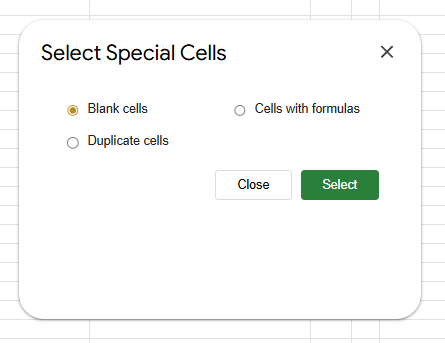
Not just duplicate cells. With this add-on, you can quickly select Blank cells, Cells with formulas in just one-click. Read on to know more.
The Problem
I don’t know about you but I have faced this problem for quite sometime now while using Google Sheets™.
- I need to find all blank cells before finalizing a table of data.
- I want to spot all duplicate cells.
- Google Sheets natively only ‘removes’ duplicate cells. But I just want to spot them.
- I want to find all cells that are formulas, so I know which ones I’d key-ed in and which ones are formula-driven.
In these situations, what did I end up doing?
Scrolling. Filtering. Manually hunting down cells.
Google Sheets™ is powerful, but it doesn’t give you a quick, native way to select specific types of cells instantly.
So instead of solving the problem, I spent time finding the problem. That caused more frustration.
Why this is a bigger issue than it looks
This is not just about inconvenience.
It creates:
- Hidden errors – missed blanks, unnoticed duplicates
- Wasted time – repetitive manual scanning
- Broken workflows – especially when working with large datasets
- Mental fatigue – context switching between logic and hunting
If you’re building anything serious – dashboards, reports, automation – this becomes a bottleneck.
I don’t need more formulas.
I need precision.
The usual workarounds (and why they fall short)
I have tried:
COUNTIForUNIQUEfor duplicates- Filters for blanks
- Conditional formatting to “highlight” issues
These methods:
- Show results – but don’t select the cells
- Require setup every time
- Break flow when switching between tasks
I’m still doing extra work around the actual work.
The Solution
This is exactly why I built Select Special Cells.

A classic scratching my own itch situation.
A simple Google Sheets™ add-on that does one thing well: It lets you instantly select cells based on what they contain.
No formulas. Simple one-time setup. No friction.
What you can do with it
- Quickly identify missing data before it becomes a problem.
- Select blank cells
- Select duplicate cells
- Select cells with formula
- Saves time instantly in 3-4 clicks
- Reduct cognitive load
- Focus on decisions, not cleanup
Who this is for
This add-on is built for people who actually use Google Sheets™ seriously:
- Freelancers handling client data
- Product builders working with datasets
- Finance and ops teams auditing numbers
- Anyone tired of repetitive spreadsheet work
Google Sheets™ is powerful. But power without speed becomes friction.
Select Special Cells removes that friction.
It doesn’t try to do everything. It solves a very specific problem – extremely well.
I have experienced this pain enough to have invested my time in building and going through the process of meticulously designing it to get approved by the Google Workspace Marketplace.
Pro-tip:
Once installed, open it on a messy sheet first – you’ll immediately see its value.
Add to your Google Sheets™ for FREE from the Google Workspace Marketplace here: